
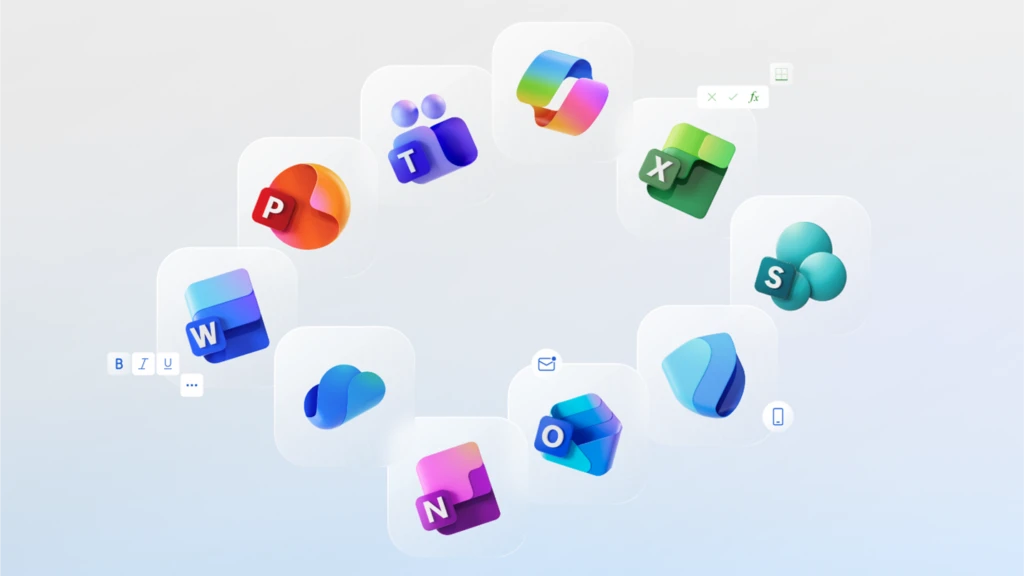
If you are anything like me, a lot of your time is spent in Microsoft 365 apps (i.e. Outlook, Word, Excel, PowerPoint) and you’ve probably noticed some big changes lately! From new icons (Microsoft calls this a “visual refresh”) to a brand-new Outlook experience, there’s a lot happening. At CIM, we know these updates can be exciting but sometimes frustrating, so here’s a simple guide to what’s changed and what’s coming soon.
Note: Microsoft is putting a lot of focus on AI, especially their new Copilot features. To use Copilot directly in Microsoft 365 apps, you’ll need a Copilot license. For nonprofits, it’s $306/year; for commercial use, it’s $360/year. For comparison, ChatGPT Pro is $200/month. Also, updates may arrive at different times depending on whether you use the web app, Mac, Windows, iOS, or Android.
Excel: Smarter, Faster, More Accessible
- Let Excel do the work for you: Excel can now spot patterns in your data and suggest formulas automatically. No need to remember complicated formulas—just let Excel help!
- Talk to Excel in plain English: Type instructions like “show me the total sales for each month” directly into a cell, and Excel will figure it out.
- Work together with AI: The new “Agent Mode” lets you describe what you want to do, and Excel’s AI will help you plan and check your work.
Coming Soon:
- Easier ways to analyze your data using Python (no coding experience needed).
- New tools to connect Excel with Power BI for real-time insights.
Word: AI-Powered Collaboration
- Agent Mode in Word: Use natural language to describe tasks and let Copilot help you create and improve documents.
- Enhanced Copilot Sessions: Copilot now remembers your work and can answer questions about your files, so you don’t lose your place.
Coming Soon:
- App Builder for creating interactive forms and dashboards directly from Word content.
Outlook: Smarter Email Management
- Copilot Summaries for Linked Attachments:
- Email Summarization: Get instant insights from long email threads—no more scrolling forever!
- Email Templates: Create, save, and reuse templates for faster, more consistent communication.
- Drag-and-Drop Enhancements: Move files between accounts and attach multiple files with ease.
Coming Soon:
- Outlook Spaces for unified project management.
- PDF previews in mobile apps.
PowerPoint: Better Presentations, Less Hassle
- Copilot Speaker Notes & Translation: AI-powered help for creating and delivering presentations.
- Brand Images: Browse and insert approved logos, icons, and photos from a central library (requires SharePoint Organization Assets Library).
Coming Soon:
- Audio-style meeting recaps
- Enhanced Copilot-driven slide design.
OneNote: Smarter Note-Taking
- AI-powered notebooks that remember context, summarize pages, and generate insights.
- Task Extraction: Automatically create to-do lists from meeting notes.
- Visual Creation: Make charts, diagrams, and study materials from your notes.
These changes are designed to save you time and make your work easier, especially if you’re not a tech expert. Features like email templates in Outlook and shared images in PowerPoint I see as making an impact in helping ministries maintain a unified voice, no matter where we’re working from.
If you have questions about getting a Copilot license or about any of these updates, reach out to our helpdesk. We’re happy to help!
Jonathan Meester – Computers in Ministry
Frequently Asked Questions (FAQ)
Q: Do I need a special license to use Copilot features?
A: Yes, Copilot requires a separate license. For nonprofits, it’s $306/year; for commercial use, it’s $360/year.
Q: Will these updates work on my phone or tablet?
A: Most features are available on all platforms, but some may arrive later on mobile devices or Mac. If you’re missing a feature, check for updates or ask our helpdesk.
Q: What is “Agent Mode”?
A: Agent Mode lets you describe tasks in plain English, and the app’s AI will help you get them done.
Q: How do I use email templates in Outlook?
A: Look for the “Templates” option when composing an email. You can create, save, and reuse templates for common messages.
Q: What is the SharePoint Organization Assets Library?
A: It’s a central place for storing approved images, logos, and icons for use in PowerPoint and other apps. Ask our helpdesk if you’d like help setting this up.
Q: Who can I contact for help?
A: Reach out to our helpdesk anytime—we’re here to support you!